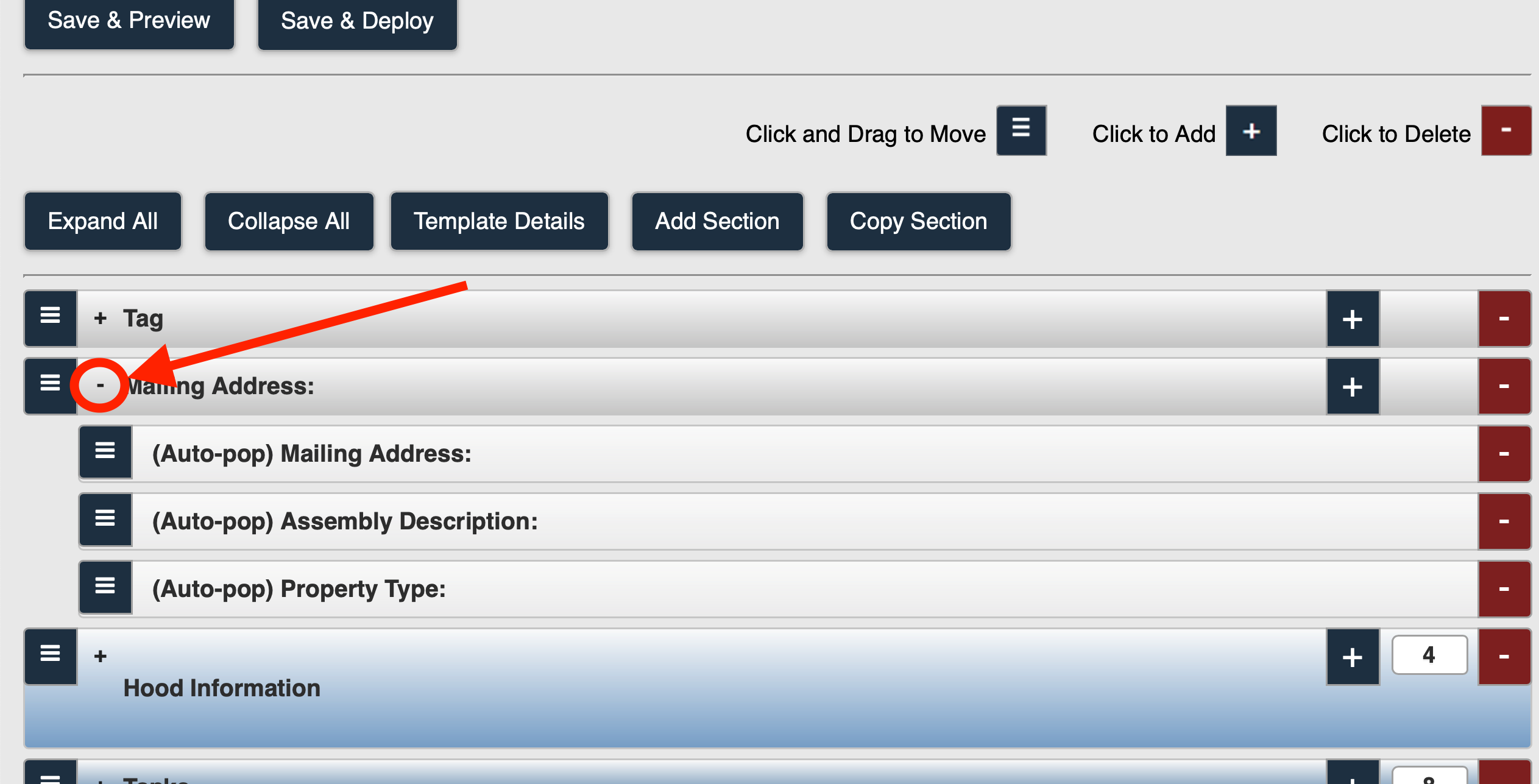
This section is intended to show you how to expand and collapse sections in a custom form.
1. From the Admin Configuration page, select Custom Forms (Figure 1).
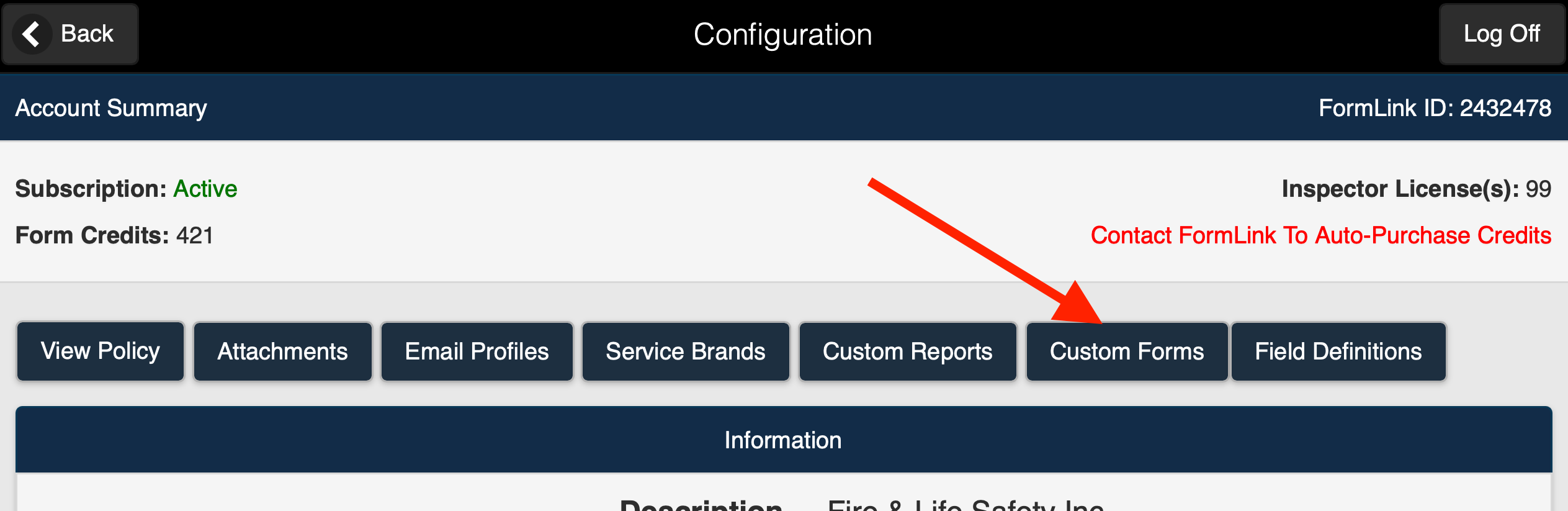 Figure 1
2. Access the Define Configurations page for your form (Figure 2).
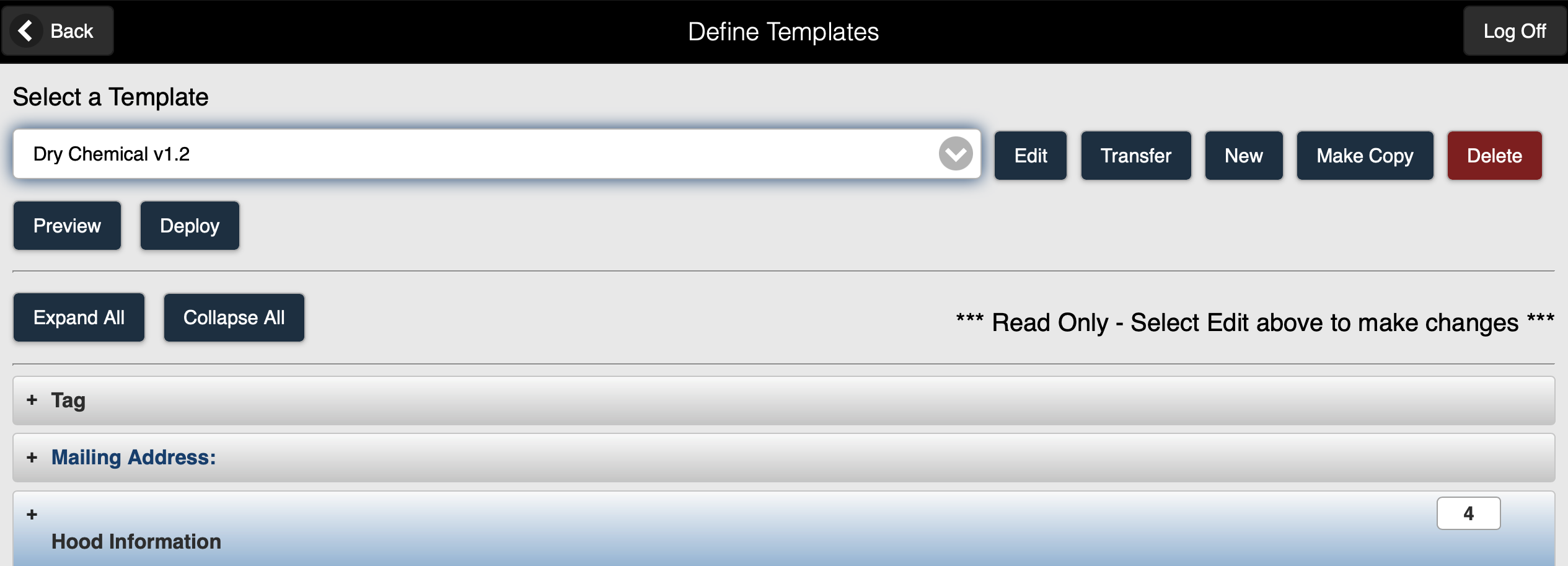 Figure 2
3. Select the Edit button (Figure 3).
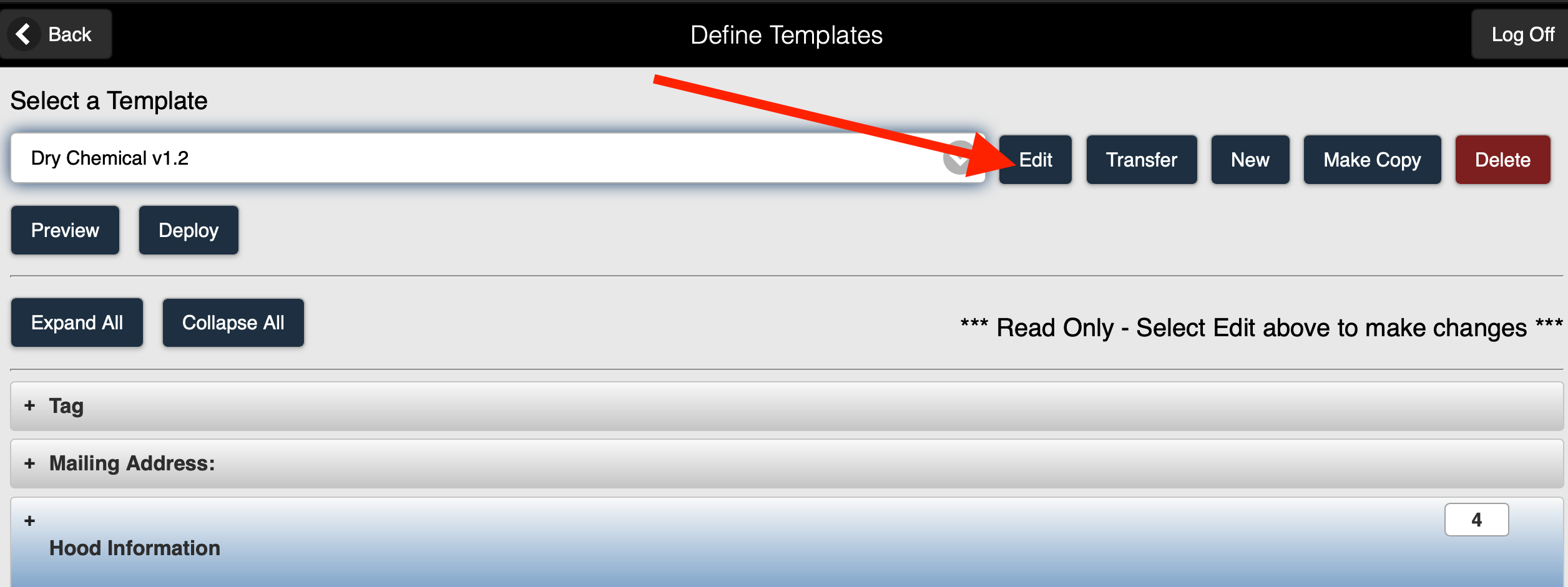 Figure 3
4. The Define Templates (edit) page for your form is displayed (Figure 4).
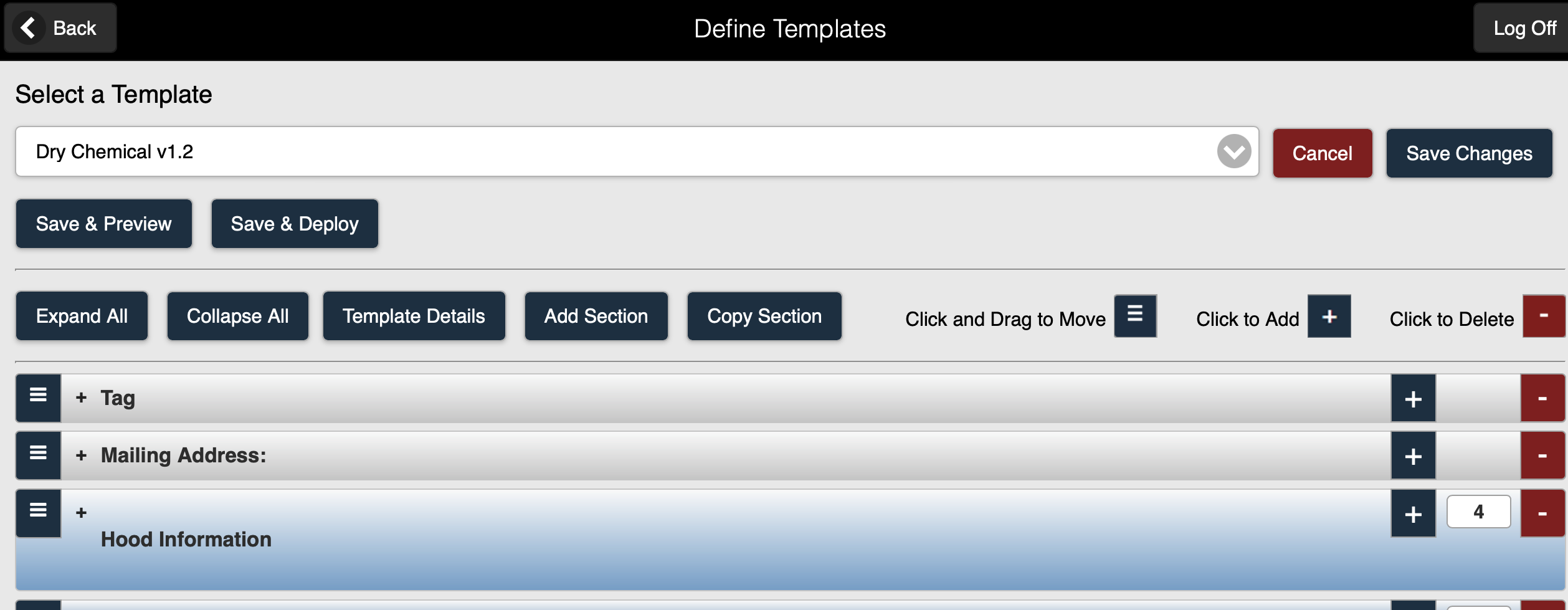 Figure 4
Expanding and Collapsing All Sections
1. Select the Expand All button to expand all sections in the form (Figure 1).
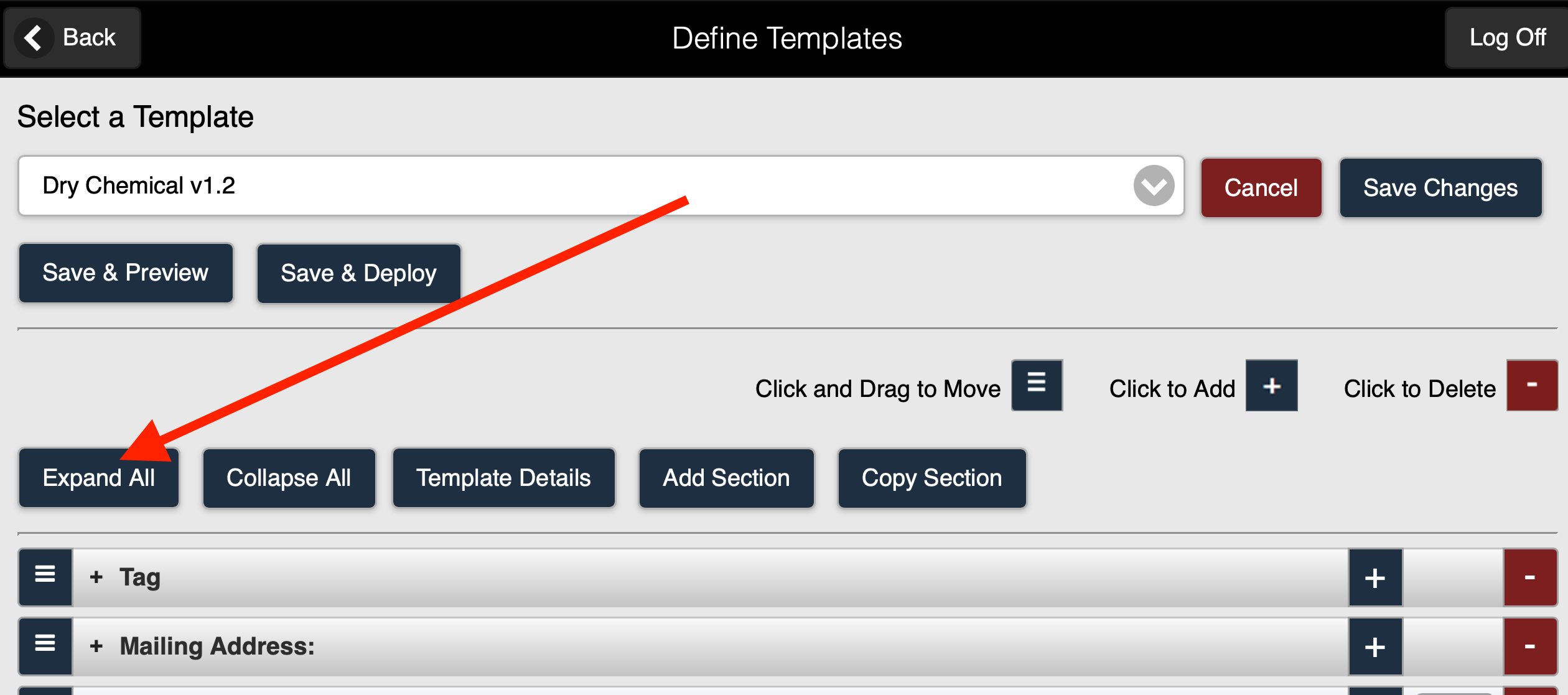
Figure 1
2. All sections are expanded (Figure 2).
.png)
Figure 2
3. Select the Collapse All button to collapse all sections in the report (Figure 3).
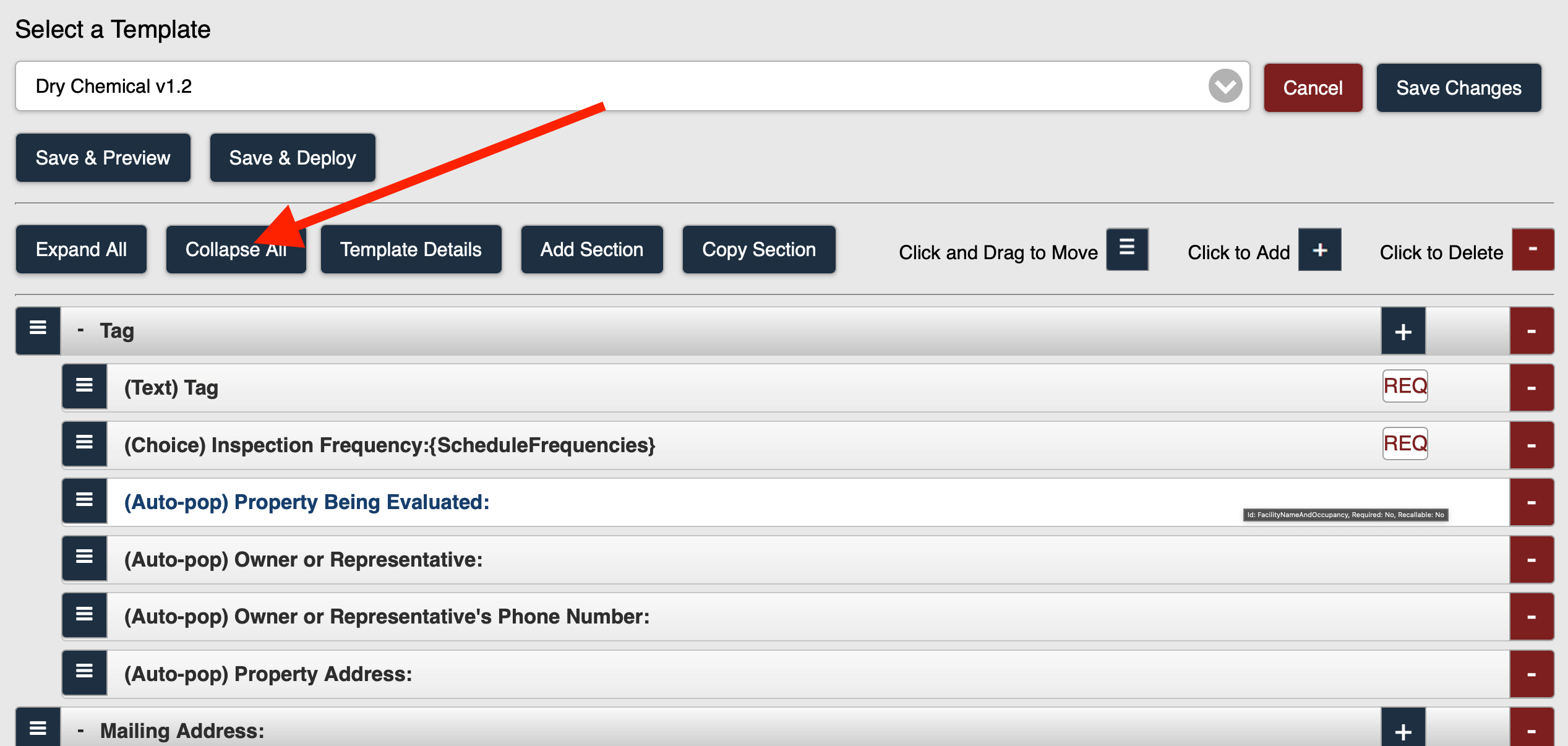
Figure 3
4. All sections are collapsed (Figure 4).
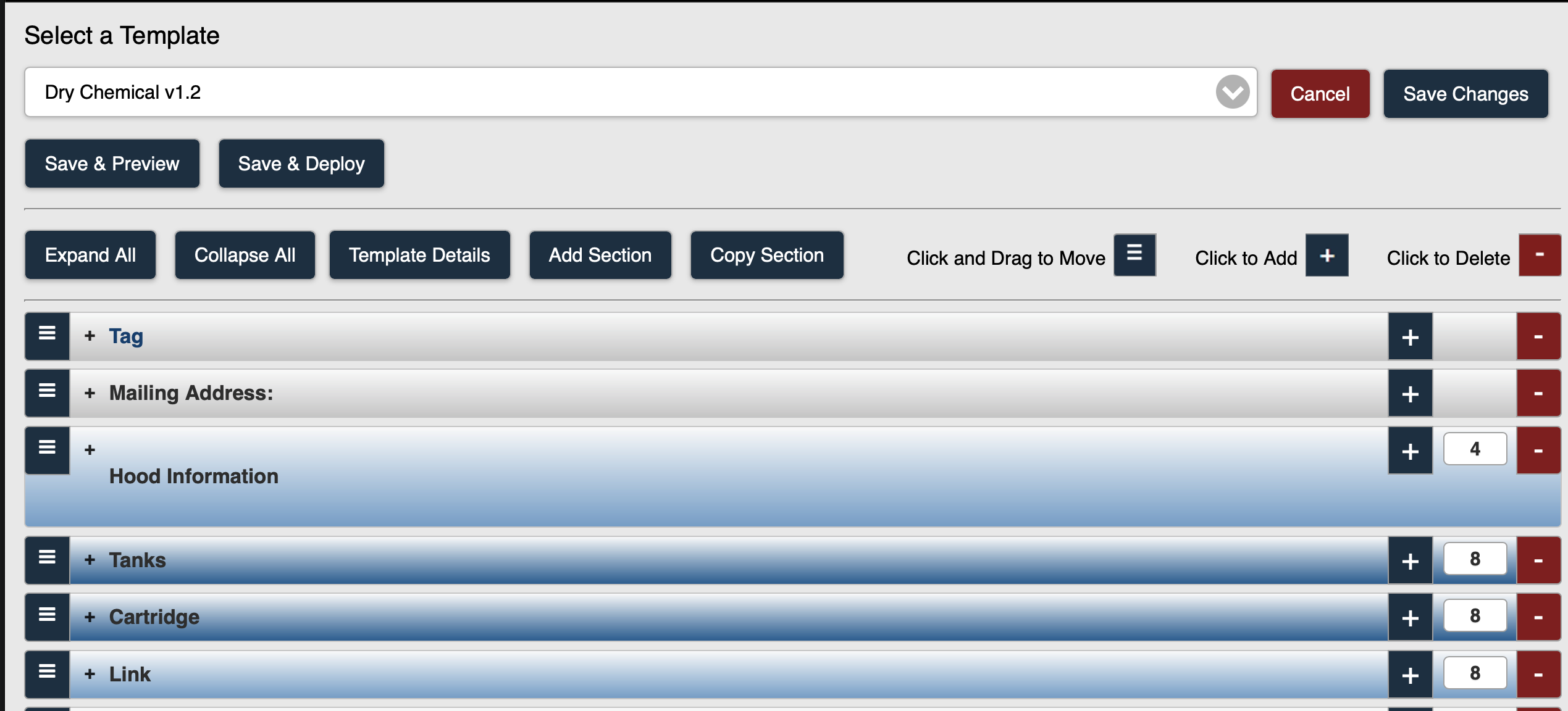
Figure 4
Expanding and Collapsing Individual Sections
1. Select the + icon within a section to expand that section only (Figure 1).
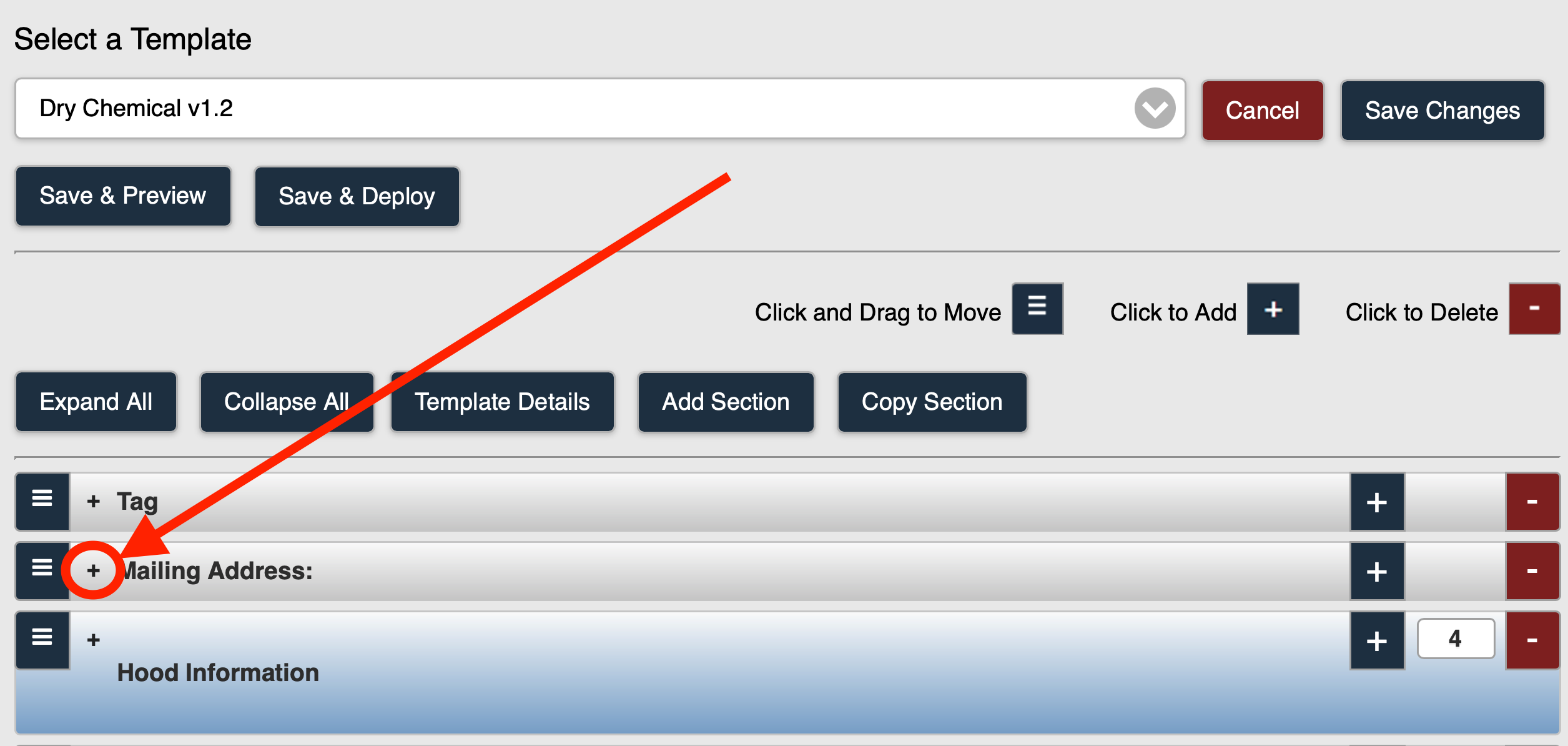
Figure 1
2. The section is expanded (Figure 2).
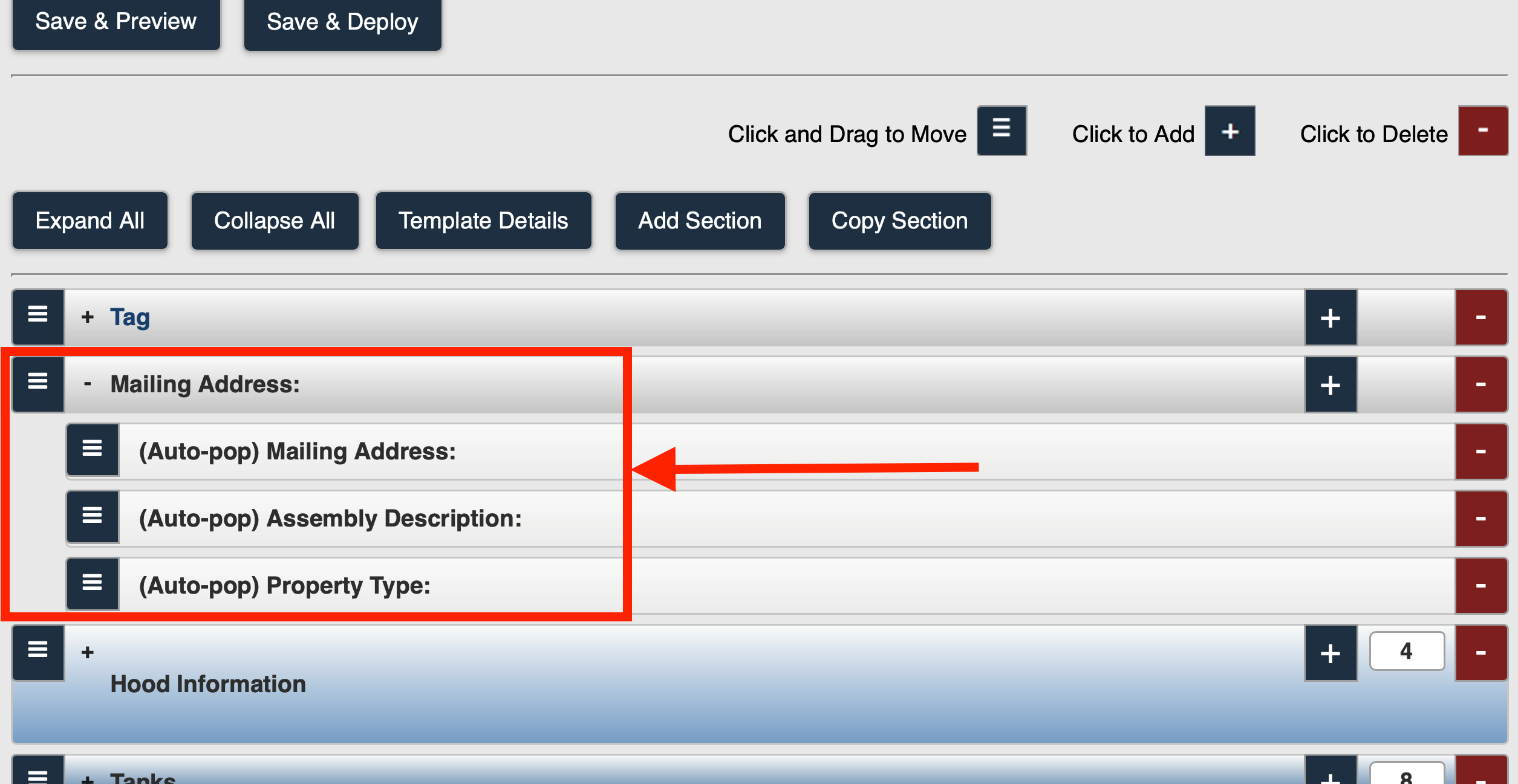
Figure 2
3. You can select the - icon within the section to collapse that section only (Figure 3).