Adding Deficiency Attachments to a Field (Including Caption)
1. In this example, the test Failed and has been designated as a Deficiency (Figure 1).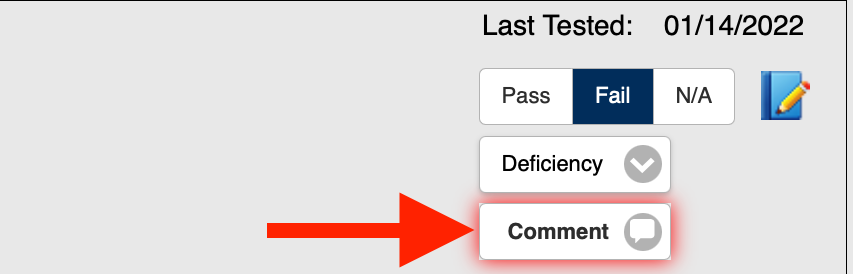 Figure 1
2. Select Comment (Figure 1).
3. The Edit Comment page is displayed (Figure 2). 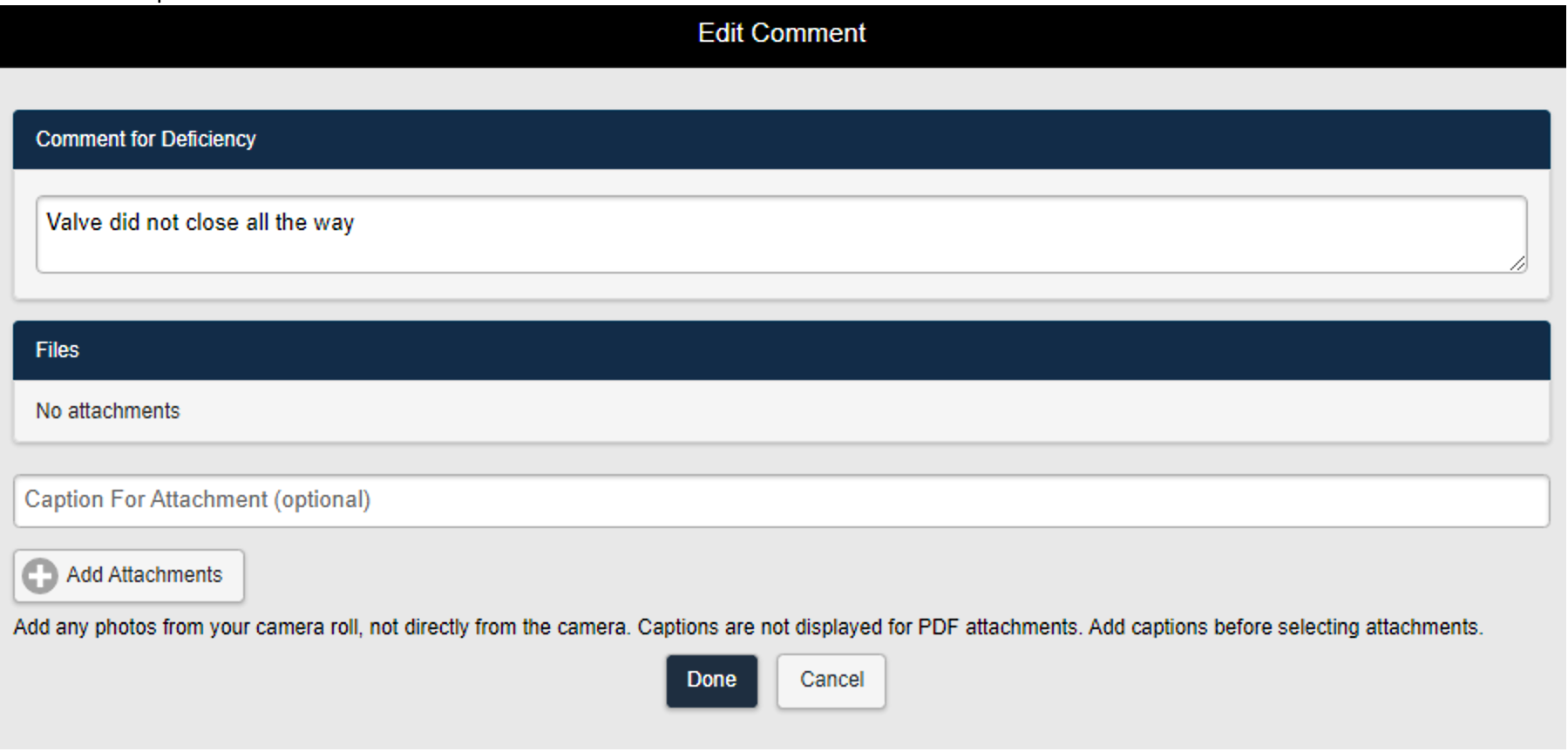 Figure 2
4. Enter a Comment (Figure 3).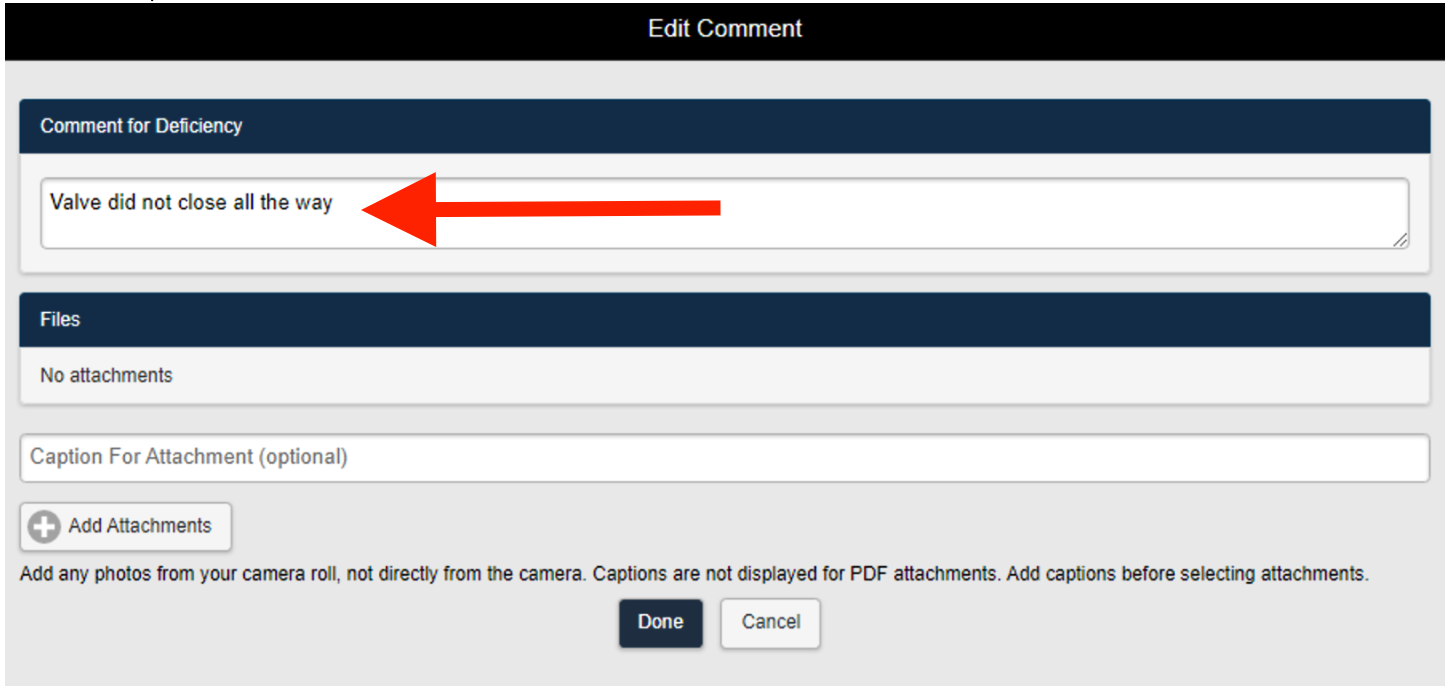 Figure 3
5. Enter a Caption for the file to be uploaded (Figure 4).
Note: You MUST enter the Caption before uploading the image file to be associated with the image.
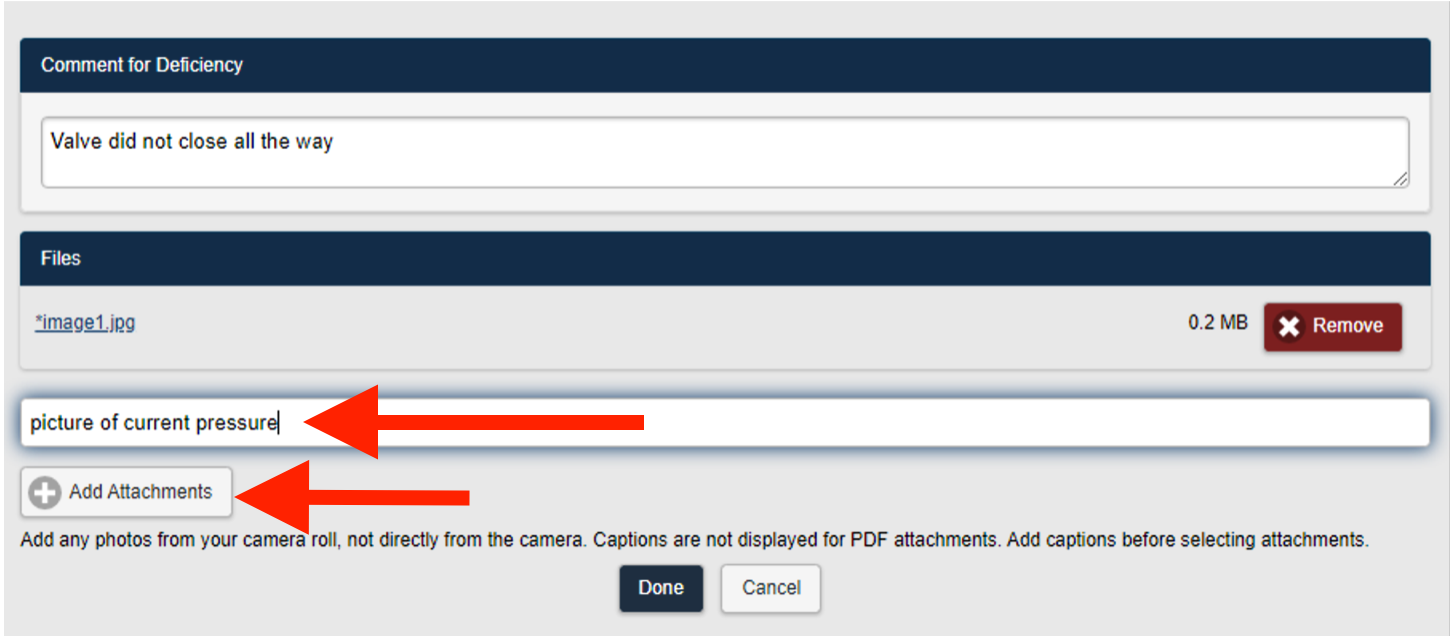 Figure 4
6. Select Add Attachments (Figure 4).
7. Select an image file to upload (Figure 5).
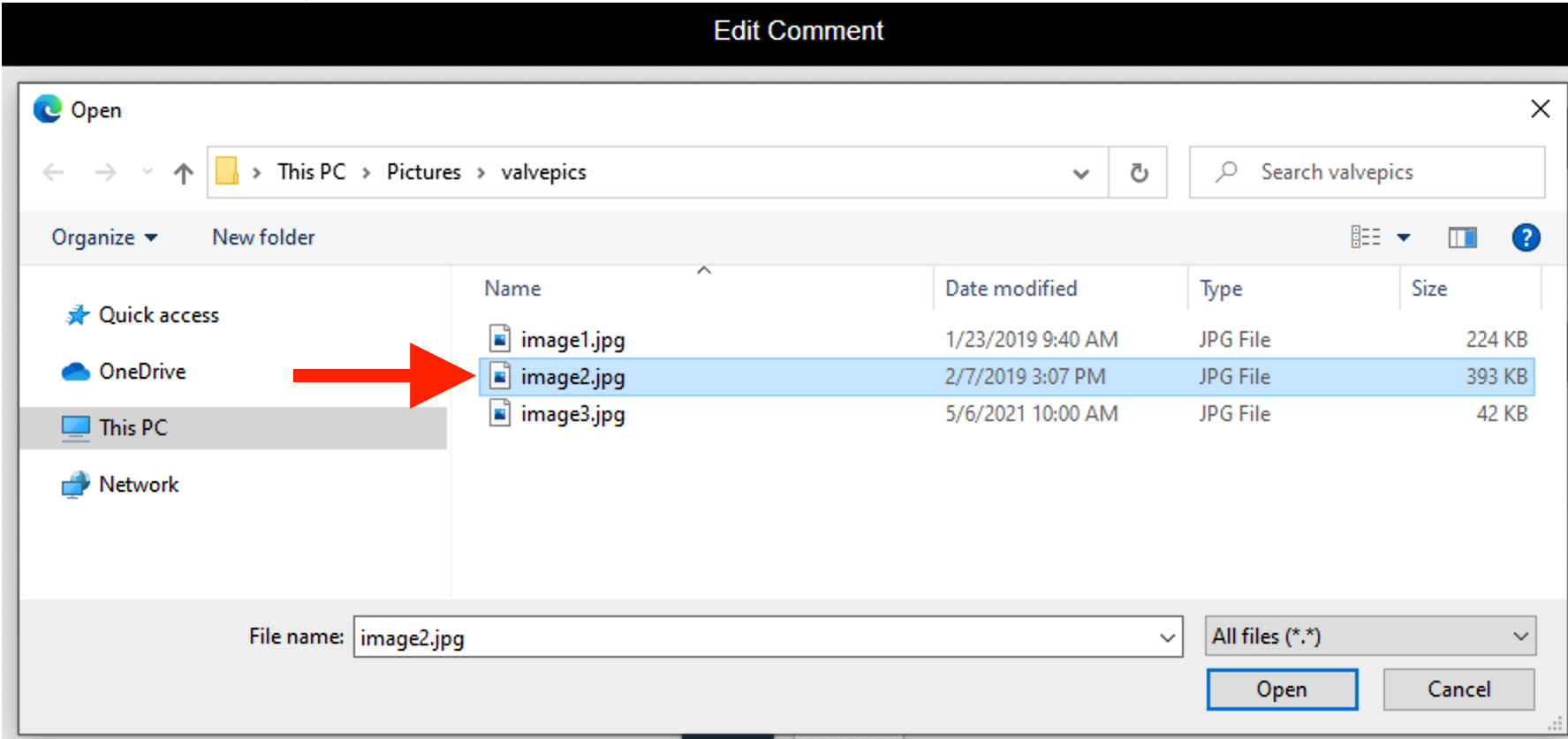 Figure 5
8. The image file is uploaded and is displayed in the Files section of the page (Figure 6).
Note: The image file now includes the caption in the file name as well as an asterisk * indicating the comments are at the field level.
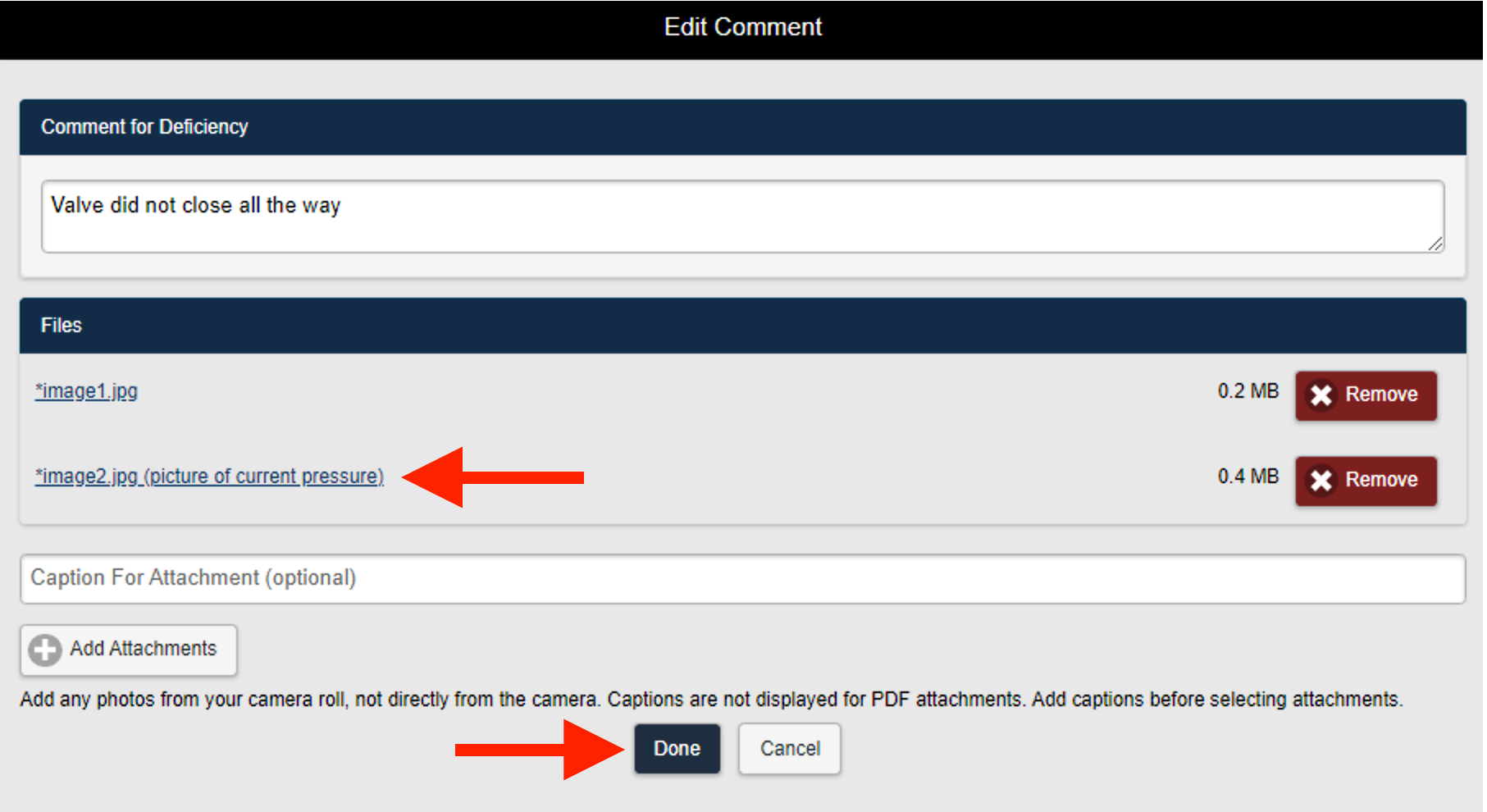
Figure 6
9. Select Done to save the Comments (Figure 6).