How to Delete a Section or Row in a Report Configuration
This section is intended to show you how to delete a section or row in a report configuration.
1. Access the Define Configurations page for your report, as described in the Define Custom Report Configuration article.
2. Select the Edit button (Figure 1).
.png)
Figure 1
3. The Define Configurations page for your report is displayed (Figure 2).
.png)
Figure 2
Deleting a Section
1. Select the - icon for a section to delete the section (Figure 1).
Note: Deleting a section also removes all rows within the section. Refer to the Deleting Rows section for details on removing individual rows from a section.
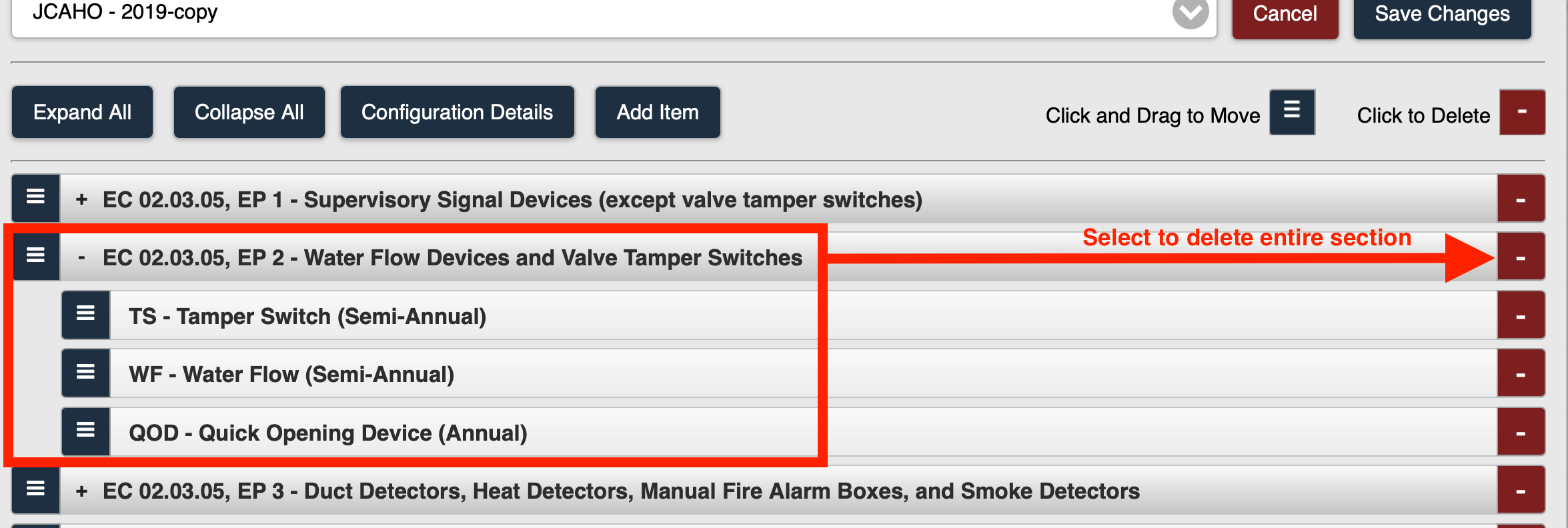
Figure 1
2. The section is deleted (Figure 2).

Figure 2
Note: When you delete an item (section or otherwise), the change is not saved until you click the Save Changes button.
Deleting Rows
1. Select the - icon for a row to delete the row (Figure 1).
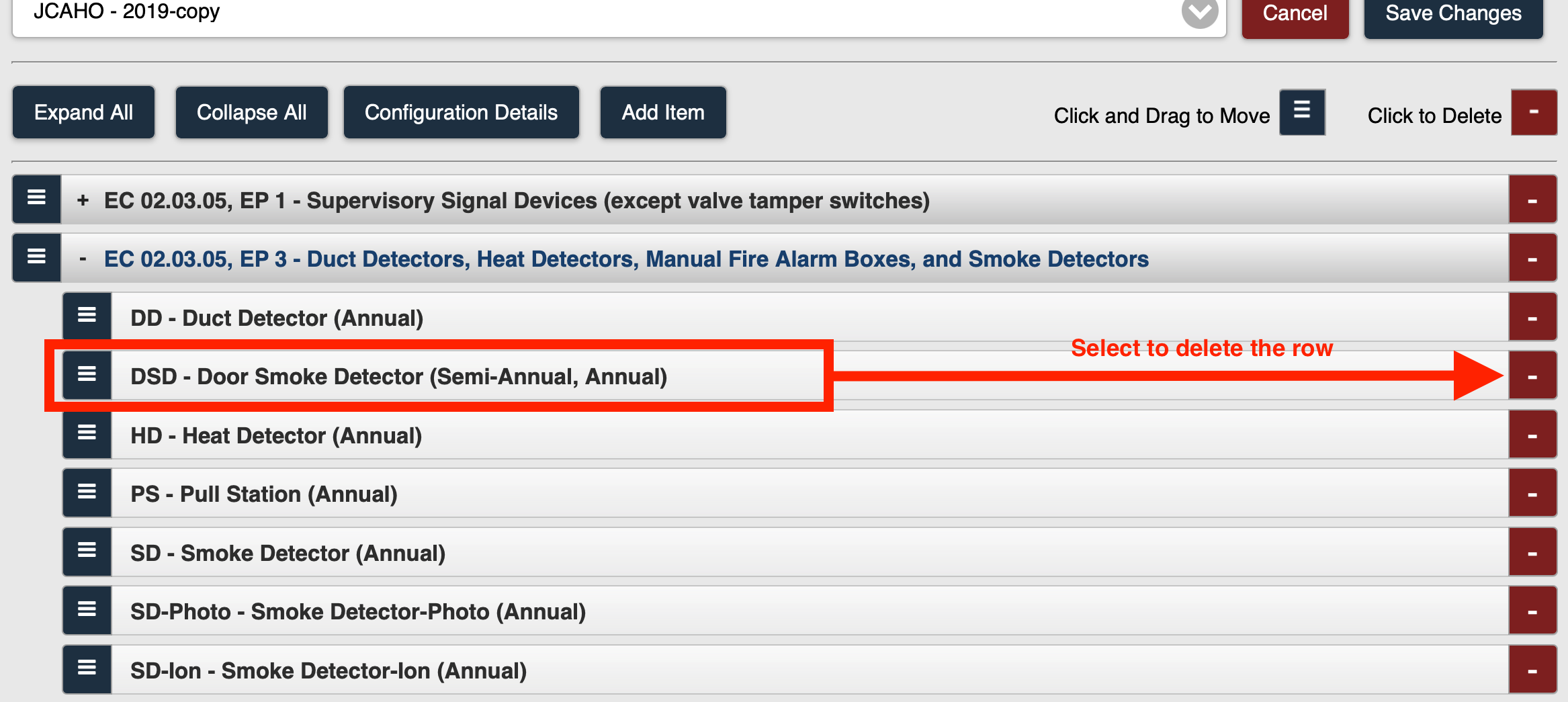
Figure 1
2. The selected row is deleted (Figure 2).
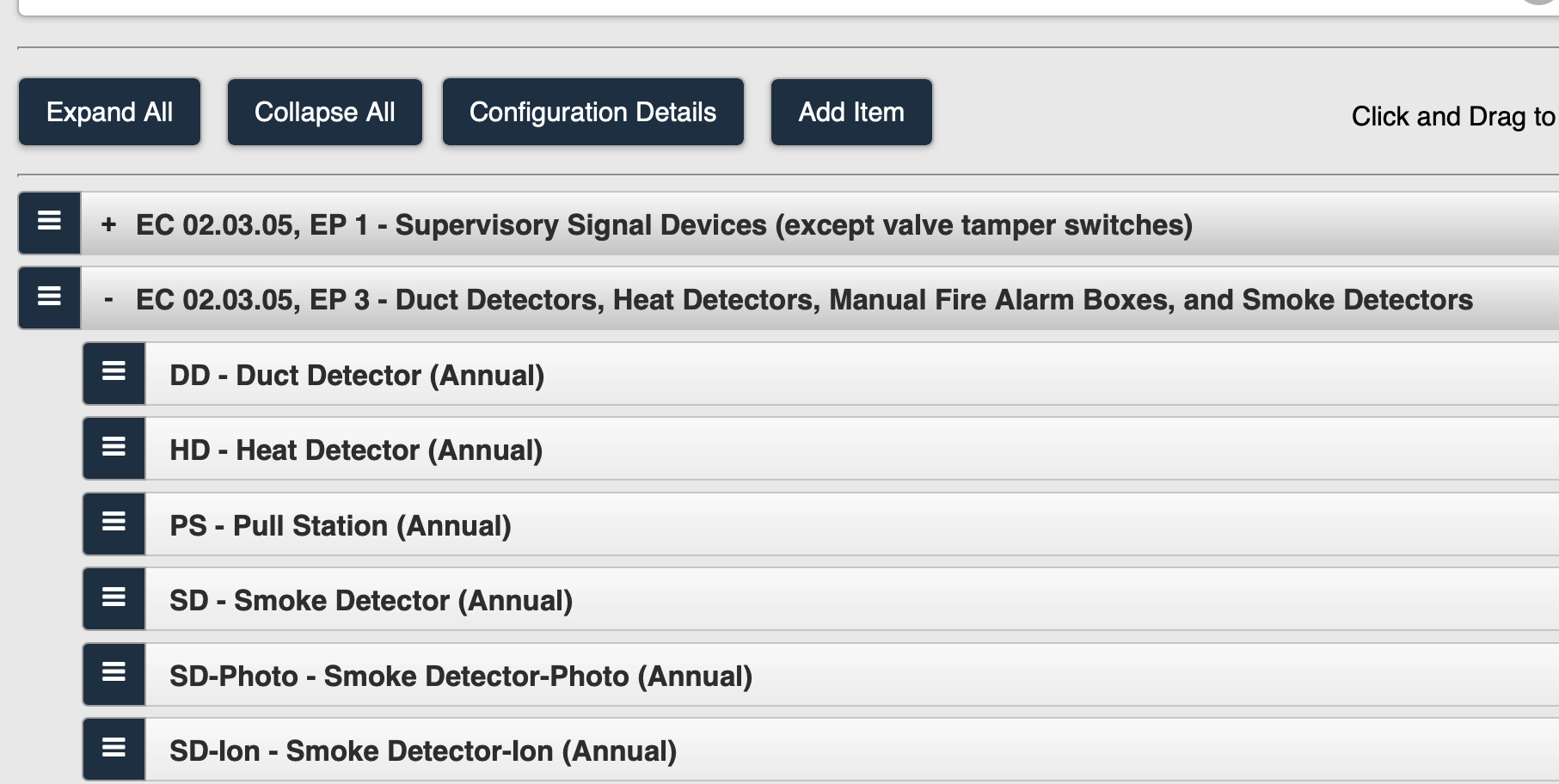
Figure 2
Note: When you delete an item (row or otherwise), the change is not saved until you click the Save Changes button.