How to Include an Executive Summary in a Configuration
Complete the following steps from your admin home page to include an Executive Summary in a report configuration.
1. Access the Define Configurations page for your report, as described in the Define Custom Report Configuration article.
2. Select the Edit button (Figure 1)..png) Figure 1
Figure 1
3. Select the Configuration Details button (Figure 2).
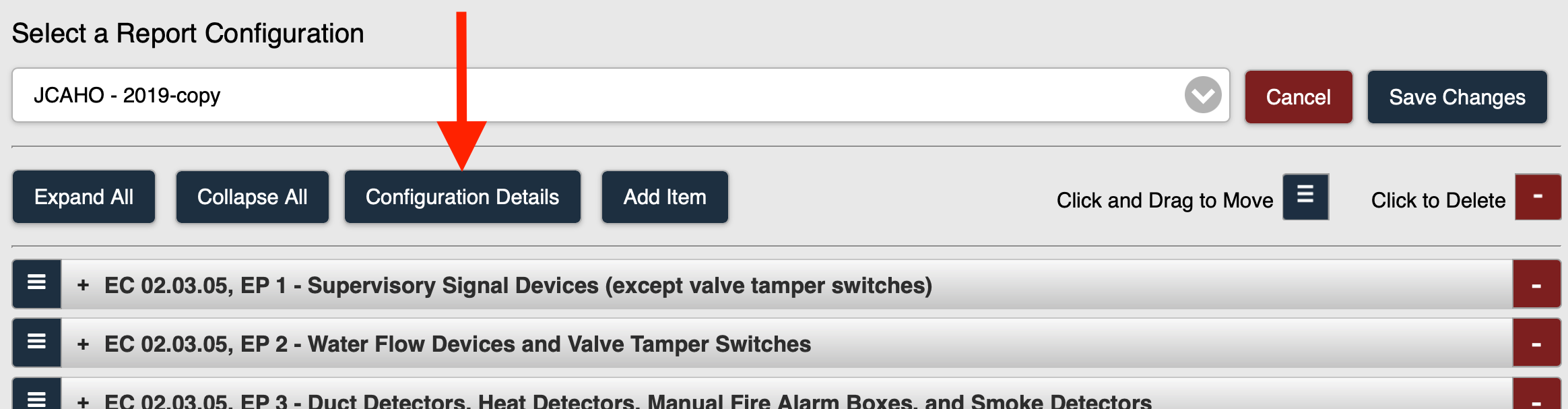 Figure 2
4. From the Edit Configuration page (Figure 3), select the Include Executive Summary checkbox if you want to include an Executive Summary in the report configuration.
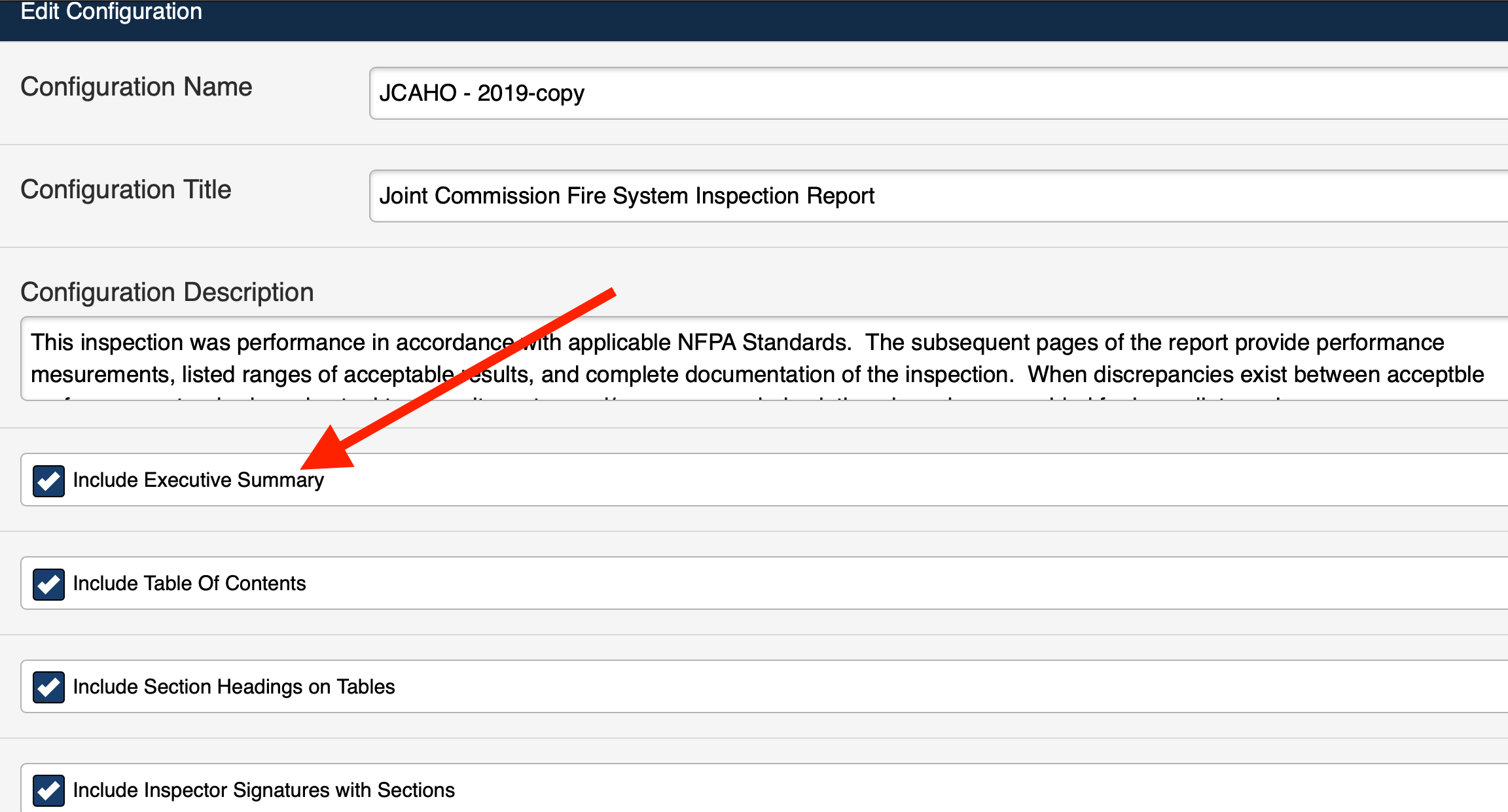
Figure 3
Note: When selected, the Executive Summary will be automatically generated and requires no user input.
The Executive Summary provides a brief summary of the results (by quarter) for each section. For each asset type in a section, the Executive Summary displays the asset type and frequency. For each quarter, the summary displays the following counts:
- Total
- Pass
- Fail
- Not Tested
Include a Table of Contents in a report configuration.