How to Expand and Collapse Sections
This section is intended to show you how to expand and collapse sections in a report configuration.
Expanding and Collapsing All Sections
1. Access the Define Configurations page for your report, as described in the Define Custom Report Configuration article.
2. Select the Expand All button to expand all sections in the report (Figure 1).
.png) Figure 1
Figure 1
3. All sections are expanded (Figure 2). .png) Figure 2
Figure 2
4. Select the Collapse All button to collapse all sections in the report (Figure 3).
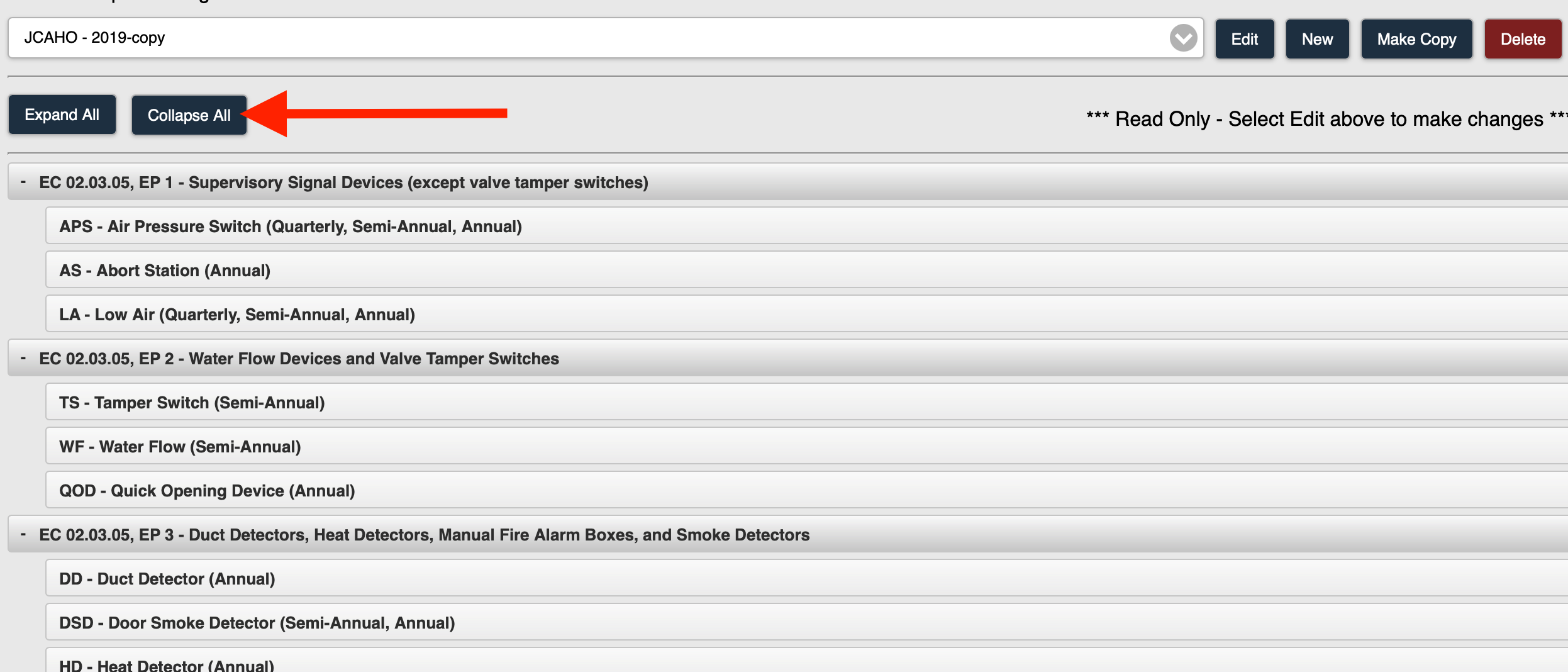 Figure 3
5. All sections are collapsed (Figure 4).
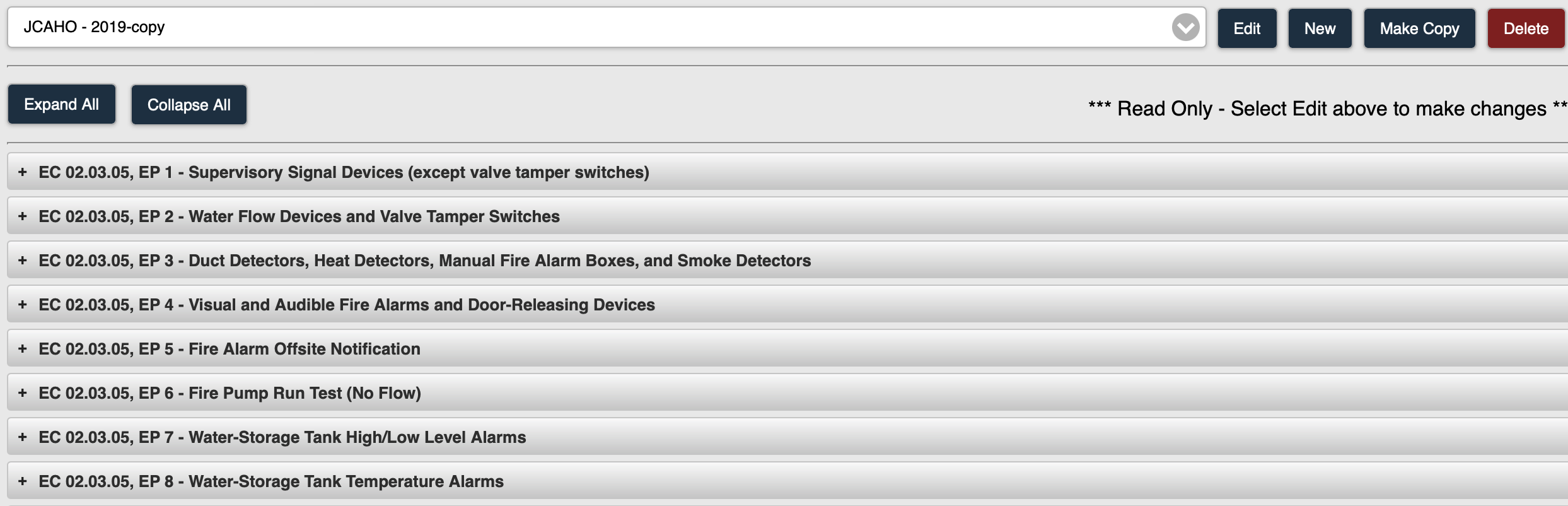
Figure 4
Expanding and Collapsing Individual Sections
1. Select the + icon within a section to expand that section only (Figure 1).
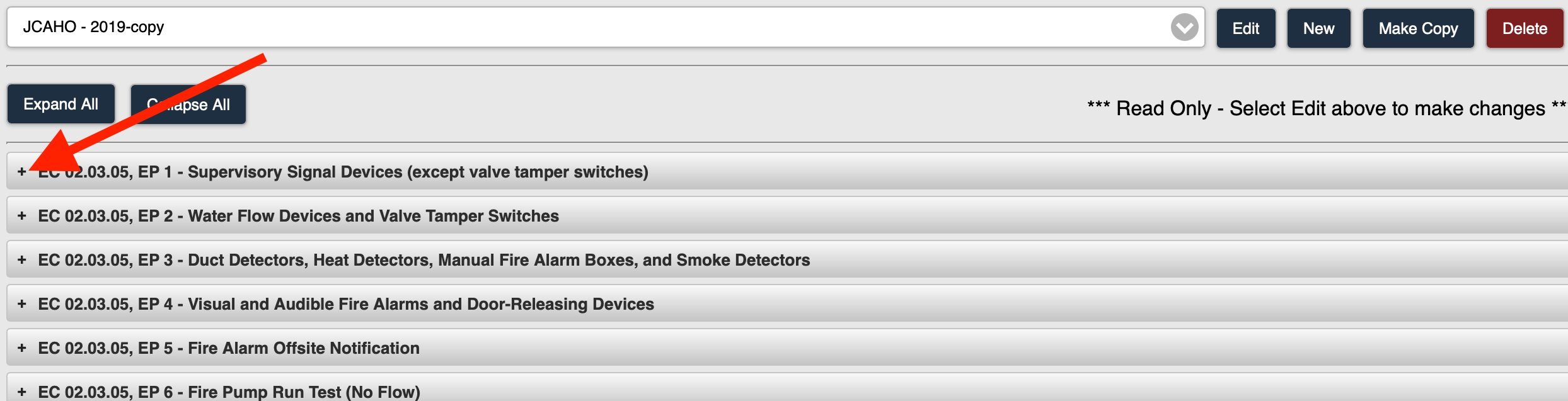
Figure 1
2. The section is expanded (Figure 2).
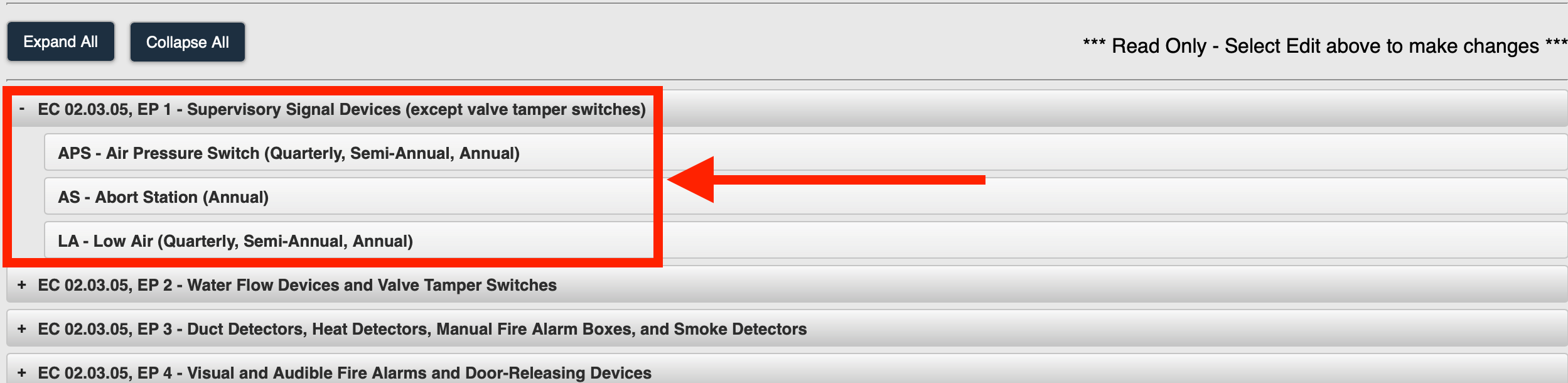
Figure 2
3. You can select the - icon within the expanded section to collapse that section only (Figure 3).
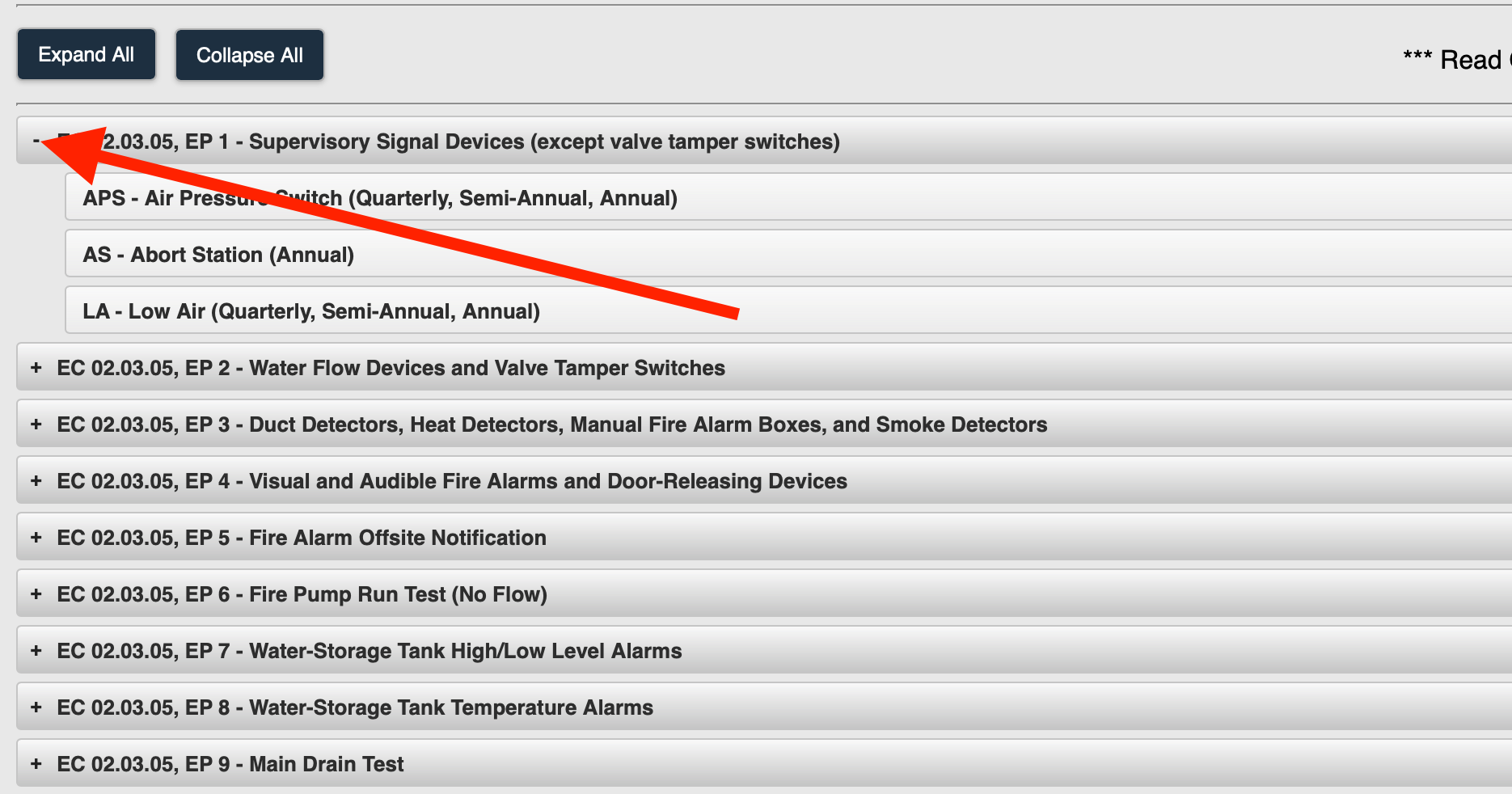
Figure 3